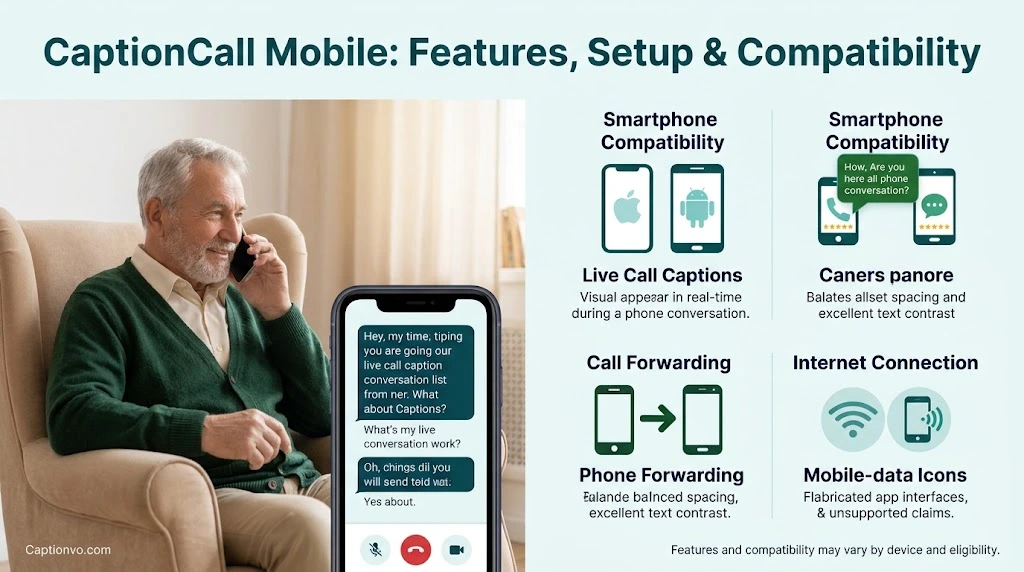
Can CaptionCall Be Used With a Cell Phone? Complete Guide (2026)
Wondering Whether you can use CaptionCall with your existing cell phone? The good news is that CaptionCall Mobile works on compatible iPhones and Android devices, allowing eligible users to read real-time captions during phone conversations. But before downloading the app, there are a few important things to understand. Can you keep your current phone number? Do you need a landline? Is the service free, and does it require Wi-Fi? This guide answers these questions in simple terms, explains how to set up CaptionCall Mobile, and shares practical troubleshooting tips so you can decide whether it suits your communication needs.
If you sometimes struggle to understand phone conversations because of hearing loss, you may wonder whether you can use CaptionCall on your existing smartphone instead of buying a special telephone.
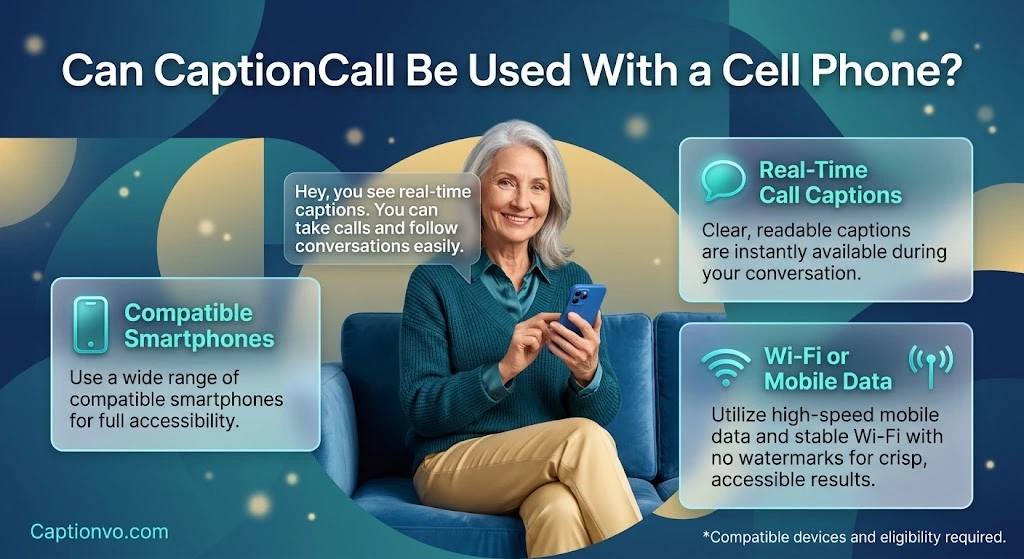
Yes, CaptionCall can be used with a compatible iPhone or Android phone through the CaptionCall Mobile app. It displays real-time captions during calls, supports incoming calls through call forwarding, and provides captioning at no cost to eligible users in the United States. Your ordinary phone plan and internet expenses may still apply.
The important thing to understand is that installing the app does not automatically caption every call on your phone. You must register, meet the service’s eligibility requirements, and configure the way you want to make and receive calls.
This guide explains compatibility, setup, phone numbers, costs, internet requirements, troubleshooting, and emergency-call considerations so you can decide whether CaptionCall Mobile suits your needs.
1. Can CaptionCall Be Used With a Cell Phone?
Yes. CaptionCall Mobile lets eligible users make and receive telephone calls while reading captions on a compatible smartphone. You do not need a separate CaptionCall home-phone handset to use the mobile app.
Here is how it works:
- Download: Install CaptionCall Mobile from the official app store.
- Register: Create an account and complete the required eligibility declarations.
- Make calls: Place outgoing calls through the CaptionCall app.
- Receive calls: Answer calls to your CaptionCall number or configure forwarding from your existing number.
- Read captions: Follow the conversation on your phone’s screen.
The app can be useful for family conversations, medical appointments, customer-service calls, and other situations in which hearing every spoken word is difficult.
Remember that captions assist communication but may not reproduce every word perfectly. If someone gives you an important date, address, dosage, or appointment detail, confirm it when necessary.
2. How Does CaptionCall Mobile Work?
CaptionCall Mobile is a telephone-captioning application that displays spoken words as text during a call. It helps users follow conversations without depending entirely on audio.
For example, imagine a doctor calls to confirm an appointment. Instead of struggling to hear the time and location, you can read the words displayed on your smartphone.
The service uses an internet connection and a captioning system to generate text. The app also offers features such as captioned voicemail and options to adjust the text display.
Three things matter most:
- Your phone must support the current version of the app.
- Your account must be registered and eligible.
- Your connection must be reliable enough for the service to function.
Background noise, unclear speech, unfamiliar names, and accents can affect transcription accuracy. Treat captions as a helpful communication aid rather than a guarantee of a perfect transcript.
3. Is CaptionCall Compatible With iPhone and Android?
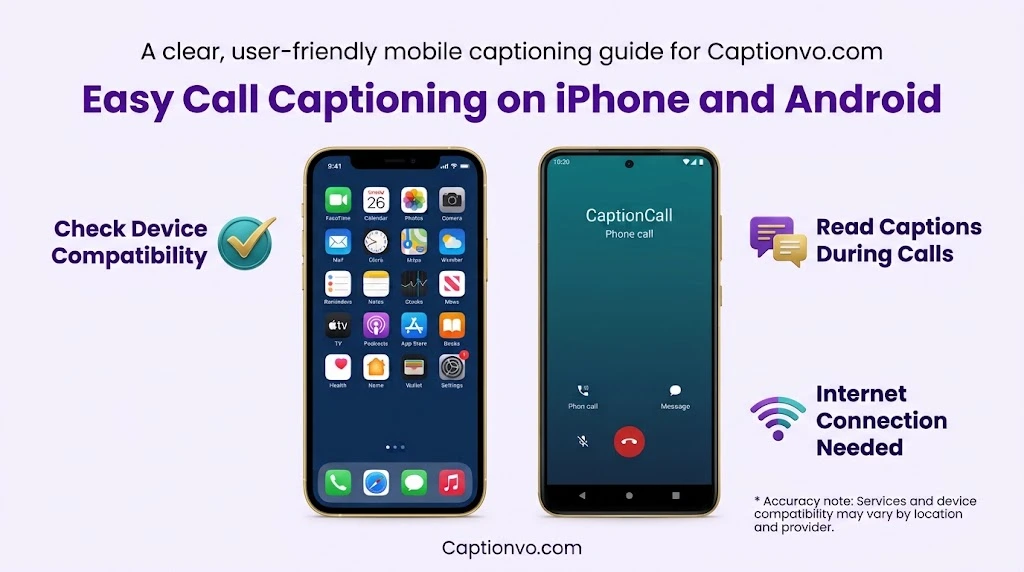
Yes. CaptionCall’s official mobile page lists support for Apple devices running iOS 15 or later and Android devices running Android 9 or later. App-store requirements can change, so check the current listing on your own device before installing.
To check compatibility:
- Open the Apple App Store or Google Play Store.
- Search for CaptionCall Mobile.
- Confirm that the developer and app listing are correct.
- Review the minimum operating-system requirement shown for your device.
- Install the app if your phone is supported.
Official download pages:
- CaptionCall Mobile for iPhone
If you cannot install the app, check your operating-system version, available storage, and internet connection. Updating your phone may help, but older devices may not support the latest release.
More to Explore: https://captionvo.com/is-there-a-monthly-fee-for-a-captel-phone/
4. Do You Need a Landline to Use CaptionCall Mobile?
No. CaptionCall Mobile is designed for compatible mobile devices and does not require a separate CaptionCall home-phone handset. The app uses an internet connection through Wi-Fi or mobile data.
| Feature | CaptionCall Mobile | Dedicated CaptionCall home phone |
| Main device | Compatible smartphone or tablet | Dedicated telephone |
| Caption display | Mobile screen | Phone display |
| Portability | Convenient for use on the go | Primarily used at home |
| Separate handset | Not required | Required for the home-phone option |
| Connectivity | Wi-Fi or mobile data | Depends on the home-phone setup |
The mobile app may suit people who already use smartphones comfortably. A dedicated phone may be preferable if you want physical controls or a display designed specifically for home telephone use.
Choose based on your hearing needs, preferred screen size, mobility, and usual calling habits.
5. How to Set Up CaptionCall on Your Cell Phone
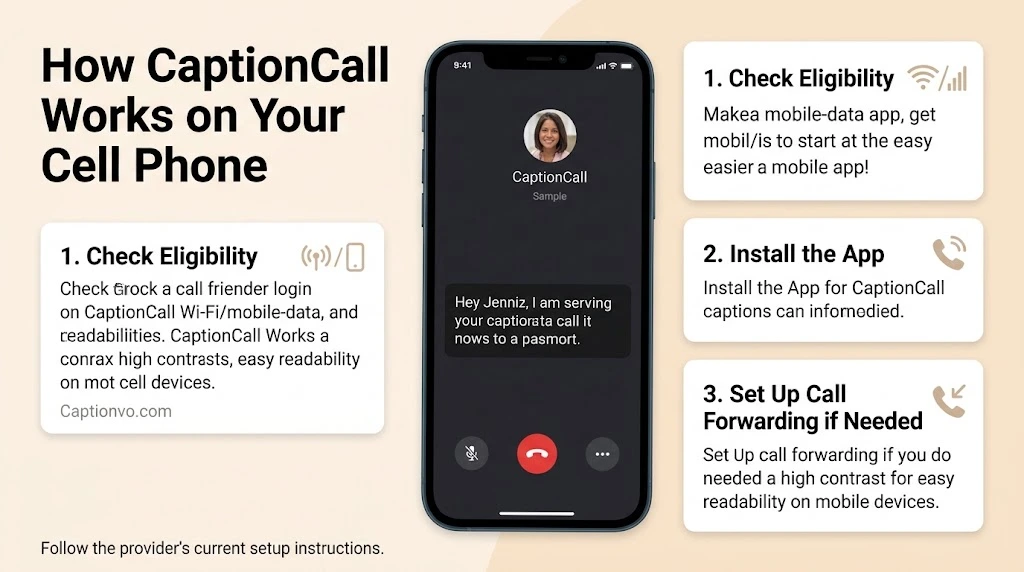
Getting started involves installing the app, creating an account, granting necessary permissions, and deciding how to manage incoming calls. CaptionCall provides an official getting-started guide with registration instructions.
Step 1: Download the app
Use the official iPhone download page or Android download page.
Step 2: Create your account
Open the app, select the account-creation option, and follow the registration instructions. Complete the required eligibility declarations and agreements.
Step 3: Allow necessary permissions
Follow the app’s prompts for microphone and other required permissions. Denying a necessary permission can prevent some features from working.
Step 4: Make a test call
Use the CaptionCall dialer to place a call. Check that the conversation appears on the screen as captions.
Step 5: Configure incoming calls
If you want calls made to your regular mobile number to appear in CaptionCall, set up call forwarding. This step is separate from creating your account.
Step 6: Test the setup
Ask a trusted person to call your usual number. Confirm that the call reaches the CaptionCall app and that captions appear.
If you encounter a registration or setup error, consult the official CaptionCall Mobile Help Center.
6. Can You Keep Your Existing Cell Phone Number?
Yes. You can continue receiving calls made to your existing number by configuring call forwarding. CaptionCall assigns a separate number when you register, but its forwarding feature can route calls from your regular number into the app. A separate My Caller ID feature can help display your usual number on outgoing calls.
To configure forwarding:
- Open CaptionCall Mobile.
- Open the side menu.
- Select Call Forwarding.
- Tap Enable and follow the instructions.
- Complete the activation process shown in the app.
- Test the arrangement by calling your usual number from another phone.
The exact procedure may depend on your mobile carrier. CaptionCall’s official forwarding guide explains the in-app process.
Important: If you uninstall CaptionCall Mobile later, disable call forwarding first. Otherwise, incoming calls may continue being routed away from your regular phone dialer.
7. Is CaptionCall Free on a Cell Phone?
Yes. CaptionCall provides its captioning service at no cost to eligible users who have hearing loss that makes captions necessary for effective telephone communication. The service is supported through the U.S. Federal Communications Commission’s Internet Protocol Captioned Telephone Service program.
However, free captioning does not mean every related expense is free.
| Possible expense | What to know |
| CaptionCall captioning | Provided at no cost to eligible users |
| Mobile phone plan | Your existing carrier charges may apply |
| Mobile data | Usage may count toward your data allowance |
| Home internet | Your usual internet charges may apply |
| Smartphone | You may need to purchase a compatible device |
CaptionCall is not a general-purpose transcription service for everyone. Eligibility rules apply, and registration must be completed.
Before signing up, check the official CaptionCall Mobile page for current requirements.
More to Explore: https://captionvo.com/how-to-have-a-good-caption/
8. Does CaptionCall Require Wi-Fi or Mobile Data?
Yes. CaptionCall Mobile requires an internet connection through Wi-Fi or mobile data. The official product page describes the app as a mobile captioning service for connected smartphones.
Here is what that means in everyday use:
- Connected to Wi-Fi: You can use the app through your internet connection without consuming mobile data for that connection.
- Away from Wi-Fi: The app can use mobile data if your cellular plan and network support it.
- Weak connection: Calls or captions may be disrupted.
- No internet connection: Do not assume the captioning service will continue working normally.
If the captions stop appearing, check your connection before changing other settings. You may also want to keep an alternative way to contact family members or emergency services.
9. Who Is Eligible to Use CaptionCall Mobile?
CaptionCall Mobile is intended for people with hearing loss who need captions to use telephone service effectively. It is a U.S. service, and users must complete the applicable registration and eligibility declarations.
Eligibility matters because the captioning service is supported by a regulated federal program.
If you are unsure whether you qualify:
- Review the requirements on the official CaptionCall website.
- Read the registration declarations carefully.
- Contact CaptionCall support if you need clarification.
Do not assume that being able to download the app automatically means you qualify for the service.
10. What Features Does CaptionCall Mobile Offer?
CaptionCall Mobile offers features intended to make phone conversations more accessible.
- Real-time captions: Read the conversation while speaking with someone.
- Incoming and outgoing calls: Make and receive calls through the app.
- Call forwarding: Route calls from your regular number to CaptionCall.
- My Caller ID: Configure your usual number for outgoing calls.
- Captioned voicemail: Read captions for supported voicemail messages.
- Call history: Review available call information and saved captions.
- Text customization: Adjust caption display settings for easier reading.
- Bluetooth compatibility: Use supported connected audio devices, including compatible hearing aids or headphones.
The provider describes these features on its official mobile page. Actual availability can depend on your device, settings, and current app version.
These features may be particularly helpful when remembering appointment details, understanding customer-service instructions, or keeping in touch with friends and relatives.
11. What to Do When CaptionCall Is Not Working
If the app is not Showing Captions or incoming calls are reaching the wrong place, work through these common checks.
| Problem | What to check |
| App will not install | Check operating-system compatibility and available storage |
| Calls are not captioned | Make sure you are calling through CaptionCall Mobile |
| Regular calls do not reach the app | Check call forwarding and carrier support |
| The other person cannot hear you | Check microphone permission and mute settings |
| Captions are missing | Check internet connectivity and app permissions |
| A different phone number appears | Review the assigned number and My Caller ID settings |
| Bluetooth audio is not working | Check pairing and selected audio output |
| Setup keeps failing | Consult the official Help Center or contact support |
CaptionCall confirms that incoming calls to your usual number are not automatically captioned until call forwarding is configured.
If forwarding fails, your carrier may restrict the feature. CaptionCall explains alternative methods in its advanced call-forwarding guide.
Avoid repeatedly changing settings without testing them. Fix one issue at a time, then make a test call to confirm the result.
12. CaptionCall Mobile vs. a Dedicated CaptionCall Home Phone
Both options are intended to improve telephone accessibility for people with qualifying hearing loss, but they suit different needs.
CaptionCall Mobile is designed for smartphone users who want captions while away from home. A dedicated CaptionCall phone is an alternative for people who prefer a purpose-built telephone with physical controls and a built-in display.
| Consideration | Mobile app | Home phone |
| Best fit | People comfortable using smartphones | People who prefer a dedicated handset |
| Portability | High | Primarily stationary |
| Screen | Smartphone display | Built-in telephone display |
| Mobile internet | Required for app use | Depends on the service setup |
| Separate device | Compatible smartphone | Dedicated captioned telephone |
Eligible users may be able to use both CaptionCall for Home and CaptionCall Mobile, subject to the provider’s requirements.
The right choice depends on your daily routine, reading comfort, preferred controls, and connection reliability.
More to Explore: https://captionvo.com/why-do-people-use-captions/
13. What Are the Alternatives to CaptionCall Mobile?
If CaptionCall is unsuitable for your device or circumstances, you can investigate other accessibility services.
Offers captioned telephone options. Review its current mobile and home-phone offerings, compatibility, and eligibility.
Official website
An app-based captioning service worth comparing for device compatibility, captioning methods, and eligibility.
Another service to investigate for supported devices, telephone options, and current eligibility requirements.
General speech-to-text apps may also help with face-to-face conversations or meetings, but they are not necessarily substitutes for a dedicated telephone-captioning service.
Before choosing an alternative, compare the supported devices, cost, privacy information, registration requirements, and emergency-calling arrangements.
14. Is CaptionCall Mobile Safe to Use for Emergency Calls?
CaptionCall Mobile supports emergency calling, but users should understand the limitations of app-based calling.
Sorenson’s emergency guidance explains that the app uses its registered E911 location. Keep your registered address accurate and update it if you move. Emergency calling through the app also depends on a working connection.
For safety:
- Read the provider’s current 911 emergency-calling advisory.
- Confirm that your registered emergency address is correct.
- Do not rely on the app when the required network connection is unavailable.
- Maintain an alternative way to contact emergency services when possible.
Emergency procedures can differ between phone services and locations. Do not assume that CaptionCall’s emergency-routing process is identical to that of a conventional landline or another mobile service.
15. Peple Also Ask About CaptionCall on Cell Phones
A: Yes. CaptionCall Mobile is available for compatible iPhone and Android devices. You must complete registration and meet the service’s eligibility requirements.
A: Yes. The mobile app does not require a separate CaptionCall home-phone handset. It requires a compatible device and an internet connection.
A: Yes. You can set up call forwarding for incoming calls and configure My Caller ID for outgoing calls, subject to feature and carrier availability.
A: The captioning service is provided at no cost to eligible U.S. users. Your usual mobile plan, internet, and data expenses may still apply.
A: Yes, on supported devices. Check the current Google Play listing to confirm the requirements for your phone.
Does CaptionCall work on iPhone?
Yes, on supported devices. Check the current Apple App Store listing for the latest iOS requirements.
Do I need Wi-Fi?
You need an internet connection, which can be Wi-Fi or mobile data. The service may not work normally if neither is available.
Why does CaptionCall give me a different phone number?
The app assigns a CaptionCall number during registration. Call forwarding and My Caller ID can help you continue using your usual number.
Why are my incoming calls not captioned?
Calls to your usual mobile number are not automatically routed into CaptionCall. Check that call forwarding is enabled and supported by your carrier.
Can anyone use CaptionCall for free captions?
No. Users must meet the applicable hearing-loss eligibility requirements and complete registration.
Can I use CaptionCall outside the United States?
CaptionCall Mobile is offered as a U.S. service. If you live elsewhere, investigate local accessibility services and their availability.
What should I do if CaptionCall stops working?
Check your internet connection, app version, permissions, and forwarding settings. If the problem continues, contact the CaptionCall Mobile Help Center.
Conclusion: Should You Use CaptionCall on Your Cell Phone?
Yes. CaptionCall Mobile can be a practical option for eligible people with hearing loss who want to read captions during phone conversations without relying on a dedicated home telephone. It supports compatible smartphones, allows calls through the app, and can route incoming calls from an existing number through call forwarding.











1 thought on “Can CaptionCall Be Used With a Cell Phone? (2026)”