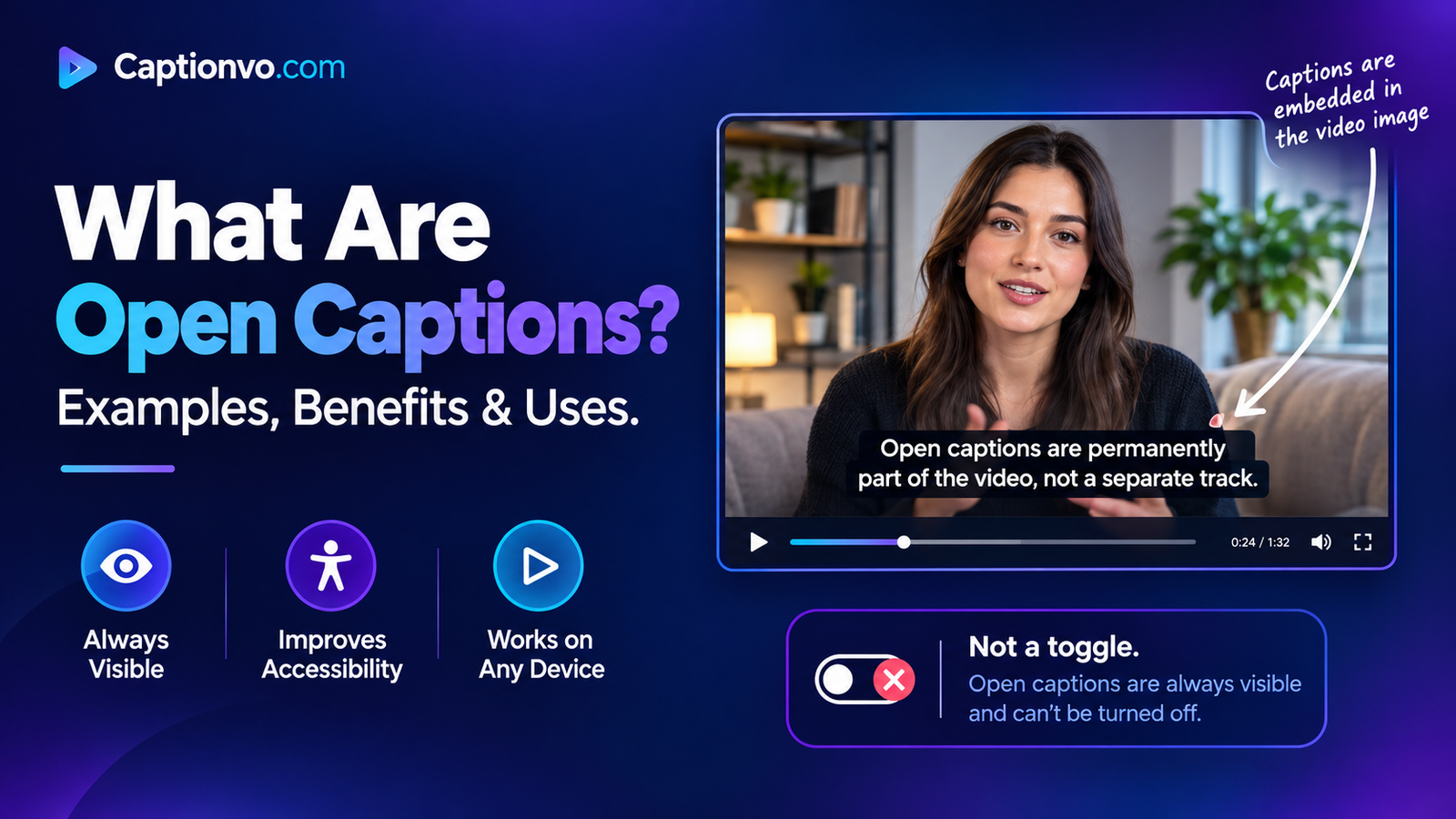
What Are Open Captions? Examples & Uses
Have you ever watched a video and noticed that the spoken words appear directly on the screen, even when there is no button to turn them off? Those words may be open captions. They are permanently embedded in the video image, so viewers see them whenever that version of the video plays.
Ever watched a Video where the words stay on screen, with no option to switch them off? Those are open captions: text permanently embedded in the video image. They make dialogue and relevant sound cues visible without requiring viewers to enable a caption setting. That can help deaf and hard-of-hearing audiences, people watching with the sound off, and viewers using screens with limited controls. But open captions are not always the best choice: they cannot be hidden or independently customized like many closed-caption tracks. In this guide, you’ll see examples, compare caption formats, and learn how to make captions clearer.
Open captions are useful for people who are deaf or hard of hearing, viewers watching without sound, and situations where reliable caption controls are unavailable. They also have limitations: viewers cannot turn them off or independently adjust their appearance through the video player.
Understanding how open captions work helps you choose the right format for social media, educational videos, marketing content, and accessible presentations. Below, we explain the differences, show examples, and walk you through creating readable open captions.
1. What Are Open Captions?
Open captions are text permanently embedded in a video image that displays spoken dialogue and relevant sound information. Viewers cannot turn them off because the text forms part of the video itself. They are also commonly called burned-in captions or hardcoded captions
Imagine watching an instructor demonstrate how to bake a cake. As the instructor explains each step, the spoken words appear at the bottom of the video. If those words remain visible throughout playback and cannot be hidden using the player’s caption controls, they are open captions.
Depending on the content, useful open captions can communicate:
- Dialogue: The words spoken by a presenter or character.
- Speaker identification: Who is speaking, especially when the speaker is not visually obvious.
- Important sound effects: For example, [door slams] or [phone rings].
- Relevant music and vocal sounds: For example, [audience laughs] or a meaningful musical cue.
Captions should represent the audio information needed to understand the video, not merely place decorative words over the image. The W3C distinguishes captions from dialogue-only subtitles because captions can also convey meaningful non-speech audio.
How Do Open Captions Work?
Open captions work by synchronizing text with the video’s audio and rendering that text into the video frames.
A typical production process follows four steps:
Step 1: Transcribe the audio. Create a written version of the dialogue and identify relevant non-speech sounds.
Step 2: Synchronize the text. Match each caption to the point at which the corresponding words or sounds occur.
Step 3: Format the captions. Choose readable typography, suitable contrast, and a position that does not hide important visual information.
Step 4: Render and export the video. Use a video editor or captioning tool to burn the captions into the finished video.
After export, open captions are part of the visual image. Fixing an error normally requires editing the caption text in the project and exporting the video again.
This is different from a closed-caption track, which compatible video players can display or hide independently of the underlying image.
What Do Open Captions Look Like? Examples Explained
The easiest way to understand open captions is to see how they represent a video’s spoken words and sounds.
Imagine a teacher explaining plant growth:
How Plants Grow
Plants need sunlight, water, and suitable soil to grow.
A simplified illustration of an open-captioned educational video.
In a finished video, the caption would stay embedded in the image as the scene changes.
Here are three more examples:
| Video situation | Example of open captions |
| Cooking tutorial | “Add the flour slowly and mix until smooth.” |
| Interview | “Maya: We started the project last summer.” |
| Important sound | “[An alarm begins ringing]” |
Open captions are commonly used in social media videos, educational content, marketing clips, presentations, and videos shown on public displays.
Remember: A title such as “Five Tips for Better Photography” is on-screen text, but it is not necessarily a caption. Captions are intended to communicate dialogue and relevant audio information.
What Is the Difference Between Open Captions and Closed Captions?
The main difference is how the captions are delivered and whether viewers control their visibility.
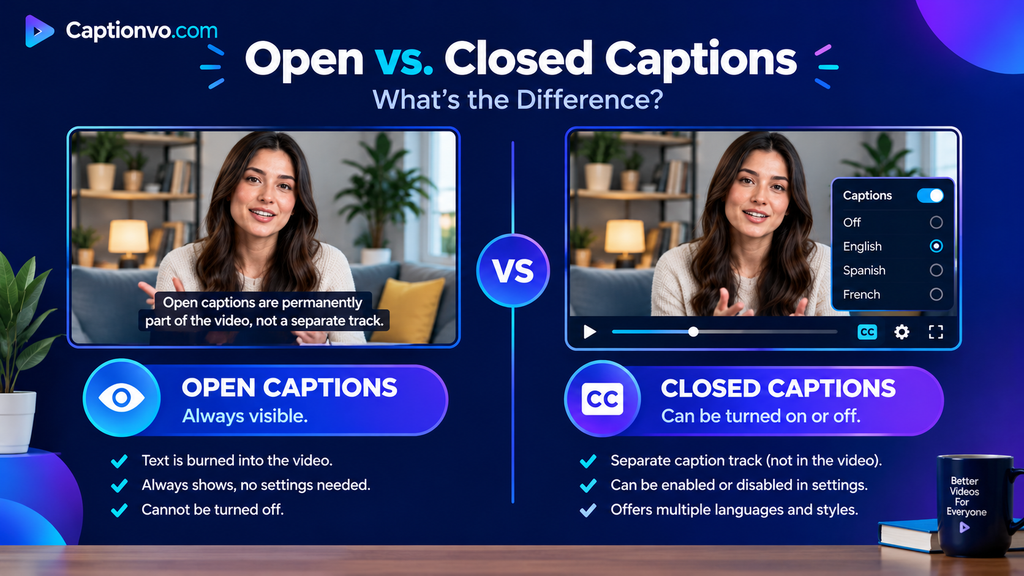
Open captions are burned into the video image. Closed captions are provided through a separate caption track or equivalent supported mechanism that allows viewers to switch them on or off.
| Feature | Open captions | Closed captions |
| How they appear | Embedded directly in the video image | Delivered as a separate caption track or supported text stream |
| Can viewers turn them off? | No | Yes, with a compatible player |
| Can appearance be customized? | Not independently of the video | Often, depending on the player |
| Correcting errors | Usually requires editing and re-exporting the video | Often possible by updating the caption track |
| Dependence on caption controls | No separate caption controls are needed | Requires a player that supports the caption mechanism |
| Best use case | Videos where captions need to remain visible | Videos where viewers should control captions |
Both formats can support accessibility. Neither automatically guarantees high-quality captions: dialogue, important sounds, timing, accuracy, and readability all matter.
For a public information screen with limited playback controls, open captions may be practical. For a video player that supports accessible caption controls, closed captions may give viewers more flexibility.
More to Explore: https://captionvo.com/does-captioncall-need-internet-5-things-to-know/
What Is the Difference Between Open Captions and Subtitles?
Open captions and subtitles describe different aspects of on-screen text.
Open captions describe how text is displayed: it is embedded in the video and always visible.
Subtitles usually describe what the text represents: often the dialogue, including dialogue translated into another language.
For example, consider an English-language film:
- Open captions: English dialogue and relevant sound descriptions embedded permanently in the video.
- Closed captions: A selectable track containing dialogue and relevant audio information.
- Translated subtitles: Spanish text translating the English dialogue.
These labels can overlap. Subtitles can be burned into a video, and some platforms use the word “subtitles” for selectable caption tracks. Terminology varies across regions, industries, and video players.
If you are creating videos for deaf and hard-of-hearing audiences, do not assume that dialogue translation alone provides all the audio information needed to understand the content.
What Are the Benefits of Open Captions?
Open Captions offer several practical advantages, especially when consistent visibility matters.
Captions are always visible. Viewers do not need to find a caption menu or enable a separate setting.
They support access to spoken information. Accurate captions help deaf and hard-of-hearing viewers understand dialogue and important sounds.
They work in sound-off situations. Viewers can follow dialogue in quiet environments, shared spaces, or situations where listening is inconvenient.
They provide consistent presentation. Caption text remains part of the video image rather than depending on separate caption-track support.
They can help with complex information. Written dialogue can reinforce instructions, unfamiliar terminology, and important details for viewers who benefit from reading alongside listening.
They are useful for public displays. Screens in waiting rooms, exhibitions, classrooms, and reception areas may not offer convenient caption controls.
The benefits depend on how the captions are created. Inaccurate text, poor synchronization, insufficient contrast, or text that covers important visual details can make a video harder to understand.
What Are the Disadvantages of Open Captions?
Open Captions are not the best choice for every situation.
Viewers cannot hide the text. Some people prefer to watch without captions, but open captions remove that option.
Viewers cannot independently customize the styling. The font, size, color, and position are fixed in the video image.
Captions can cover important visuals. Poor placement may obscure a face, demonstration, chart, product, or on-screen label.
Corrections may require another export. Since the text is part of the image, editing it is generally less flexible than updating a separate caption track.
Different languages may require separate versions. If you publish the same video in multiple languages, you may need to render and export multiple captioned versions.
The text is not automatically available as accessible text to screen readers. A transcript or an appropriate accessible caption mechanism can provide additional access options.
These limitations make the delivery context important. Open captions are useful when always-visible text is a priority; closed captions are often more flexible when viewers need control.
Do Open Captions Help Deaf and Hard-of-Hearing Viewers?
Yes. Accurate open captions can help deaf and hard-of-hearing viewers access the dialogue and relevant sounds in a video.
Useful captions may identify speakers and describe meaningful sounds, such as an alarm, laughter, or a door closing. These details can affect the meaning of a scene even when the spoken words are transcribed correctly. The W3C includes dialogue, speaker identification, and meaningful non-speech audio within its explanation of captions.
The sound descriptions may provide useful context that dialogue alone does not convey.
However, not everyone prefers permanently visible text. Some viewers may benefit from selectable closed captions that allow adjustments to the caption display. When your distribution method permits it, consider the needs of your audience before selecting a format.
Where Are Open Captions Used on Social Media and Other Platforms?
Open captions are useful wherever a video needs to communicate spoken information without requiring viewers to enable a caption track.
| Use case | Why open captions may help |
| Instagram and Reels | Important spoken information remains visible in the video |
| TikTok | Viewers can follow dialogue while watching without sound |
| Facebook videos | Text can communicate the message in sound-off viewing contexts |
| Educational videos | Instructions and explanations remain visible throughout playback |
| Business and promotional videos | Key spoken messages remain accessible in shared or quiet spaces |
| Presentations and events | Captions remain visible when playback controls are limited |
| Public information displays | Viewers do not need to activate a caption setting |
Platform features change, and a video with embedded captions is different from a video that offers generated or selectable captions automatically. Do not assume that a particular platform treats all caption formats identically.
For social media, keep captions clear of interface elements such as buttons, account details, and video descriptions. Check the finished video on a mobile screen, because the platform’s controls or cropping may obscure text near the edges.
Open captions may help people understand a video when they cannot use sound, but they do not guarantee higher reach, views, or engagement.
More to Explore: https://captionvo.com/halloween-gifs/
How Do You Add Open Captions to a Video?
You can add open captions using video-editing software or a captioning tool that supports burning text into a video.
Step 1: Create a transcript
Write down the dialogue accurately. Include relevant sound descriptions and speaker identification when they help convey the content.
Automatic speech recognition can save time, but review the output for names, technical terminology, accents, background speech, and omitted sounds. Captioning guidance from the University of Bath emphasizes reviewing and editing automatically generated captions before publication.
Step 2: Synchronize the caption segments
Break the transcript into manageable sections and align each section with the corresponding audio.
Captions that appear too early, disappear too quickly, or lag behind the speech can be difficult to follow.
Step 3: Style the text for readability
Choose a legible font and an appropriate size for the video dimensions. Maintain sufficient contrast between the text and whatever appears behind it.
A solid or semi-transparent background panel can help when the video contains bright, moving, or visually busy scenes.
Step 4: Place captions carefully
The bottom of the screen is common, but it is not suitable for every video.
Keep captions away from essential visual information and platform controls. If the video includes product labels, charts, or important text near the bottom, adjust the caption placement.
Step 5: Burn the captions into the video
In the editor, look for a caption-rendering option such as “burn captions,” “render captions,” or “export with captions.”
The exact label depends on the software. Confirm that you are exporting a video with embedded captions rather than a video file accompanied only by a separate caption track.
Step 6: Review the exported file
Play the final video from beginning to end. Check the wording, timing, relevant sound descriptions, text size, contrast, and placement.
Also test it at the intended viewing size. An edit that looks good on a large monitor may be difficult to read on a phone.

How Can You Make Open Captions Readable and Accessible?
Good open captions must be accurate, synchronized, complete enough to convey important audio information, and readable against the video.
Use this checklist before publishing:
- Accuracy: Correct spelling, names, terminology, and punctuation.
- Synchronization: Match captions to the words and sounds they describe.
- Completeness: Include dialogue and important non-speech sounds.
- Contrast: Make sure the text is clearly distinguishable from its background.
- Readable size: Test the text at the smallest likely viewing size.
- Placement: Keep captions from obscuring essential images, labels, or demonstrations.
- Consistency: Use clear, consistent formatting and speaker labels.
- Mobile testing: Check how the captions appear on actual mobile screens and within the target platform.
The U.S. Section 508 guidance also recommends planning for captions during video production and considering how existing on-screen text may conflict with the usual caption area.
A practical test is to play the finished video on a small screen at normal viewing distance. Can you comfortably read the text without missing the important action? If not, revise the text size, timing, contrast, or placement.
For videos used in formal accessibility contexts, follow the applicable standard and check more than visual appearance alone.
More to Explore: https://captionvo.com/halloween-costumes/
Are Open Captions Required Under WCAG Accessibility Guidelines?
The Web Content Accessibility Guidelines (WCAG) address whether video content provides captions, not whether every video must specifically use open captions.
Under WCAG 2.2 Success Criterion 1.2.2, prerecorded synchronized media generally needs captions unless a defined exception applies. This is a Level A criterion. The W3C lists open captions and suitable closed captions among the techniques that can satisfy the requirement.
That means open captions can be a valid way to provide captions, but using them does not automatically establish that an entire website or video experience meets every applicable accessibility requirement.
The actual implementation still matters. Captions should represent the dialogue and meaningful audio information accurately, appear at the right time, and not obstruct relevant visual content. Other requirements may also apply, including audio description for certain prerecorded videos.
Legal obligations can depend on jurisdiction, organization type, platform, and context. If you are publishing for a public institution or regulated organization, check the standards and laws that specifically apply to your situation.
Can You Turn Off or Customize Open Captions?
No. Viewers generally cannot turn off or independently customize open captions because they are embedded in the video image.
To watch the video without them, you need a version that does not contain the embedded text. To change the wording, size, color, or position, the creator usually needs to edit the project and export another version.
Closed captions provide more flexibility when a compatible player allows users to enable, disable, or customize their display. The available controls depend on the player and platform.
If you create video content for different audiences, consider maintaining an original version without burned-in captions as well as a captioned version. That makes it easier to correct embedded text, create alternative formats, and produce captions in other languages.
Where supported and practical, providing a selectable caption track alongside other accessible resources may offer viewers more choice.
People Also Ask About Open Captions
A: Open captions are words and relevant sound descriptions permanently embedded in a video. They stay visible during playback and cannot be switched off by the viewer.
A: Yes. “Burned-in captions” is a common term for text rendered directly into a video’s image. “Hardcoded captions” is another term used for the same general format.
A: Open captions are permanently embedded in the video. Closed captions use a separate supported caption mechanism that viewers can generally turn on or off.
A: Not necessarily. Open captions describe how the text is displayed, while subtitles usually represent dialogue and may translate it into another language. Captions can also include meaningful sound descriptions.
A: Yes, when they accurately communicate the dialogue and relevant sounds. Incomplete or incorrect captions can still leave important information inaccessible.
Final Thoughts
Choose Open Captions when you need the text to remain visible throughout the video and cannot rely on viewers having access to caption controls.
They can be a good choice for public displays, presentations, social media clips, and videos distributed in environments where captions need to be visible immediately. They are also useful when you want a consistent visual presentation across compatible playback environments.
Choose closed captions when viewers should be able to turn captions on or off, and the player supports an appropriate caption mechanism.











2 thoughts on “Open Captions Explained: How They Work & When to Use Them”